
Postmortems
Postmortems in 1stLine by Burava are markdown documents attached to Incidents after response work is complete.
A postmortem is not an incident status log. The Incident already keeps status, priority, responder, metric, and lifecycle history. 1stLine uses that available Incident data to prefill postmortem context, so your team starts with real timeline evidence instead of a blank page.
Use the postmortem to turn that timeline into a clear explanation of what happened, what impact it had, and what the team will change next.
When postmortems are editable
Postmortems are for resolved incident review.
In the 1stLine UI, the postmortem editor is read-only until the Incident is resolved. Resolve the Incident first, then write or update the postmortem. Closed incidents keep the postmortem available as part of the final incident record.
This prevents teams from writing the final review while the Incident is still active.
Prefilled incident timeline
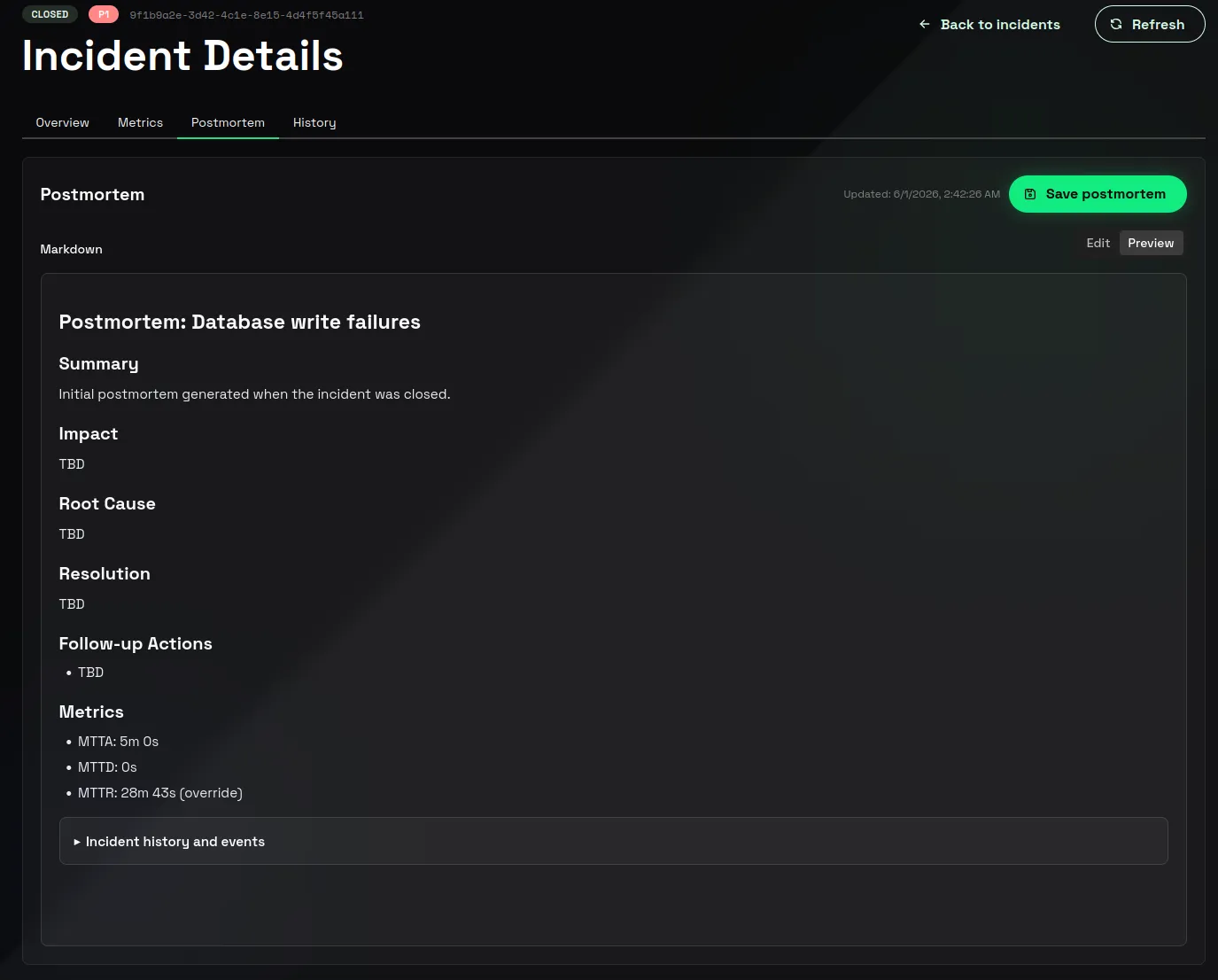
When an Incident is resolved, 1stLine can prefill the postmortem with data from the Incident record.
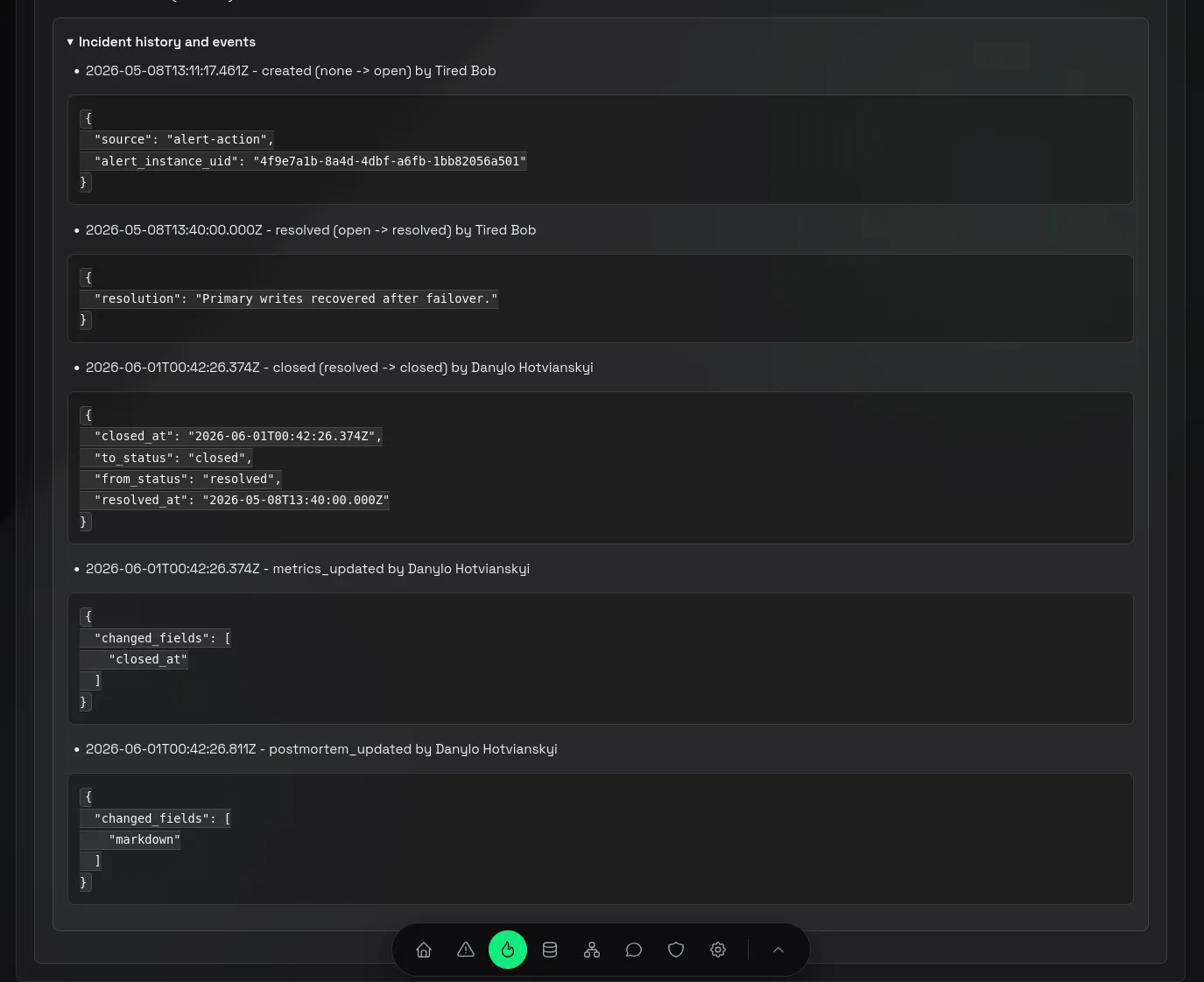
The prefilled content is based on the data available in 1stLine, including lifecycle events, responder joins, status changes, priority changes, metrics, and postmortem update history. This gives responders a factual starting point before they add root cause, impact, and follow-up actions.
What 1stLine adds for you
When a postmortem is saved for a resolved Incident, 1stLine can keep incident context with the markdown, including incident metrics and history details from the Incident record.
That means the postmortem can refer back to:
- Incident status and priority changes
- responder joins
- lifecycle timestamps
- MTTA, MTTD, and MTTR
- postmortem update history
Use this as evidence for the write-up. The goal is not to duplicate the whole timeline by hand; the goal is to explain the timeline in plain language.
What to write
A useful postmortem usually answers these questions:
- What happened?
- Who or what was affected?
- When was it detected?
- When did response start?
- When was it resolved?
- What was the root cause or most likely cause?
- What fixed or mitigated it?
- What should change before this happens again?
Keep the markdown specific. A short postmortem with concrete dates, impact, and follow-up actions is more useful than a long generic one.
Update from the UI
- Open Incidents.
- Open the resolved Incident.
- Open Postmortem.
- Write or edit the markdown.
- Use Preview to review the rendered version.
- Click Save postmortem.
Saving a postmortem records a postmortem_updated Incident Event. You can use that event in Incident history and in Incident Actions that listen for postmortem updates.
Update with MCP
1stLine MCP includes postmortem tools for assistants and automation:
get_incident_postmortemgets the postmortem for an Incident UID.update_incident_postmortemcreates or updates the postmortem markdown for an Incident UID.
Use get_incident_postmortem before editing so the assistant works from the current document instead of replacing newer content. Use update_incident_postmortem only after the Incident is resolved and the postmortem is ready to change.
MCP postmortem updates follow the same incident workflow expectation as the UI: postmortems are written after resolution, not while the Incident is still being handled.