
Schedules
Schedules let 1stLine choose responders by time instead of by one fixed user.
Open Escalation Schedules to create and manage Schedules.
When to use a Schedule
Use a Schedule when the right responder changes over time, for example:
- weekly on-call rotation
- day and night handoff
- weekend coverage
- temporary replacement during leave or incident load
Without Schedules, you would need to keep editing Line Members manually. With a Schedule, the Line can stay stable while the active responder changes automatically.
Where Schedules fit in escalation
Schedules are usually used through Line Members.
In a Line Member, set Member Type to Schedule, then choose the Schedule you want. When escalation reaches that Line Member, 1stLine uses the active user from that Schedule.
Schedule configuration
On Create Schedule and Schedule Details, the main fields and sections are:
- Name
- Description
- Timezone
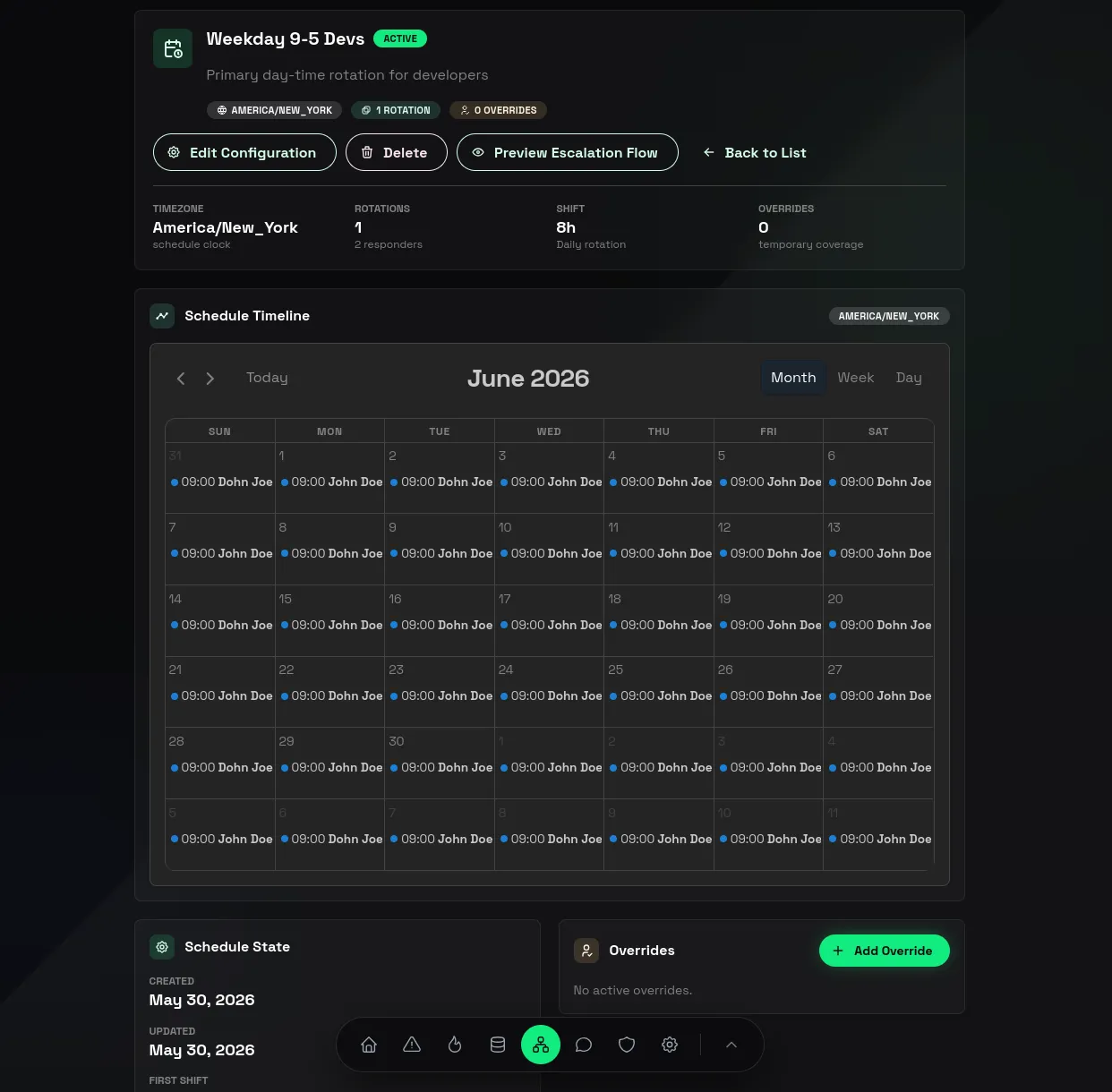
- Schedule Timeline
- Schedule State
- Overrides
- Rotations
Timezone
Timezone matters because rotation start times, shift changes, and override windows are evaluated in the schedule timezone.
Choose the timezone that matches how the on-call team actually works. This avoids confusing handoffs around midnight or daylight saving changes.
Rotations
Rotations define the repeating schedule structure.
Use Add Rotation to create a rotation layer with:
- Rotation Type
- Rotation Interval
- Shift Length
- Rotation Start
- Rotation Members
The editor supports these rotation types:
- Daily
- Weekly
- Custom
In practical terms:
- Rotation Type decides the rhythm model
- Rotation Interval decides how often that rhythm repeats
- Shift Length decides how long one shift lasts
- Rotation Start decides where the schedule begins
- Rotation Members decide who rotates through that layer
Use one rotation when the schedule is simple. Add more structure only when you need it.
If you use more than one rotation layer, keep the layer order sequential starting at 1.
Overrides
Overrides are temporary changes to the normal schedule.
Use Add Override when someone else should cover a defined window without changing the underlying rotation.
An Override includes:
- selected user
- start time
- end time
This is the right tool for vacation coverage, short-term swaps, or incident-specific temporary reassignment.
Schedule Timeline and Schedule State
The details page includes Schedule Timeline and Schedule State so you can verify who is active and how the next shifts line up.
The timeline supports:
- Month
- Week
- Day
Use it before live testing. It is much easier to catch a bad start time or wrong rotation member in the timeline than after escalation has already contacted the wrong person.
The schedule details page also includes Preview Escalation Flow.
Use it to see where that Schedule appears in the broader escalation path. This helps verify not only who is on call, but also which escalation path will use that Schedule when an alert reaches it.
Recommended setup pattern
For a reliable first schedule:
- Choose the right Timezone first.
- Start with one rotation layer.
- Add the real users who should rotate.
- Check the Schedule Timeline.
- Use Preview Escalation Flow to confirm the Schedule is connected to the expected escalation path.
- Add Overrides only when the base rotation is already correct.
That order keeps the schedule easy to reason about.
Related pages
- Escalation
- Lines and Line Members
- Guide: 24/7 Escalation Coverage with Backups
- Guide: Create a Schedule Override
- Troubleshooting for common schedule issues.