Review AI Escalation Assignments
Use AI Escalation Assignments to review what happened after 1stLine by Burava sent an Alert Instance to your controller.
Open assignments
Open AI Escalation Assignments.
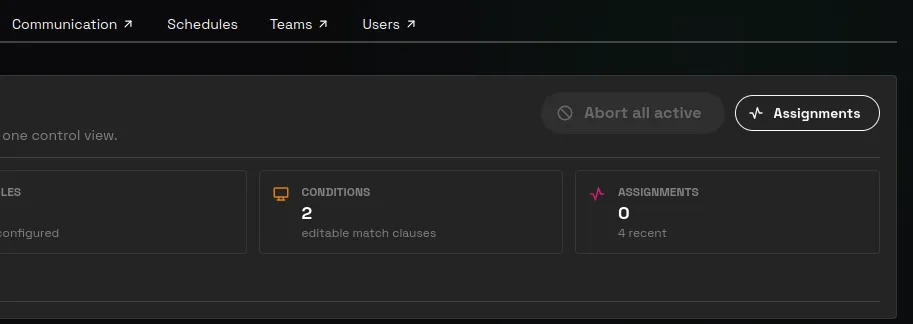
The page shows recent assignment delivery, responses, suggested actions, and failures.
You can also open an assignment from an Alert Instance details page when it shows AI assignment or AI assignments.

Review an assignment
Open an assignment to review:
- assignment status
- linked Alert Instance
- Matched Rules
- Suggested Actions
- AI Response
If the assistant returned no response yet, the page shows that no response has been returned. If the assignment failed, the page shows the failure message available to responders.
Run suggested actions
Suggested actions only appear when the assistant returned an action type allowed by the matching rule.
Depending on the rule, suggested actions can include:
- Resolve
- Escalate further
- Escalate to
- Start incident
- Join incident
Review the AI Response first. Then run only the suggested action you agree with.
Abort active assignments
Use Abort all active to stop all active AI assignments for the organization.
Users with write access can also abort an individual active assignment from the assignments list.
Delete assignments
Use Delete when an assignment should be removed from the AI assignment view.
Deleting an assignment removes the stored AI assignment record and generated AI content from 1stLine. It does not delete the original Alert Instance, and it does not retract anything already forwarded to an alert destination.
Plan view-only state
If the current plan does not include AI Escalation, 1stLine shows AI Escalation as view-only. You can review existing information, but you cannot create connections, edit rules, or start new assignments until the plan includes AI Escalation.
Related pages
OpenCode is a third-party brand. Burava does not own, represent, or speak for OpenCode.