Escalation
In 1stLine by Burava, Escalation is the part of the product that turns a matched alert into a responder workflow.
This is where 1stLine answers the practical response question: who should be contacted, in what order, and how should the path change over time?
The Escalation model
Escalation in 1stLine is built from a small set of connected objects:
- Routing Rules decide which alerts should enter escalation paths
- Chains define the escalation path
- Lines define the steps inside that path
- Line Members define who can respond in each step
- Schedules make responder choice depend on time
- Escalation Flow is the runtime path followed by a live alert
- Escalation Assignment is the concrete responder assignment created during that flow
These objects are separate on purpose. That makes it possible to keep one response model flexible without rebuilding the whole path each time a team, shift, or service changes.
How escalation starts
Escalation does not start from the alert payload directly.
The path is:
- An Alert Producer sends an alert.
- An Alert Schema extracts the fields.
- A Routing Rule matches the Alert Instance.
- The Routing Rule sends that Alert Instance to a Chain.
- 1stLine follows that Chain through its Lines and Line Members.
If no Routing Rule matches, the alert does not enter a Chain and stays Orphan.
Why the model is split this way
This structure gives you different levels of control:
- use Routing Rules to decide which path applies
- use Chains to define one path per service, team, or alert class
- use Lines to define the order of escalation steps
- use Line Members to decide who can respond at each step
- use Schedules when the responder changes by time
That means you can model simple setups and much more flexible ones without changing the basic workflow.
Preview Escalation
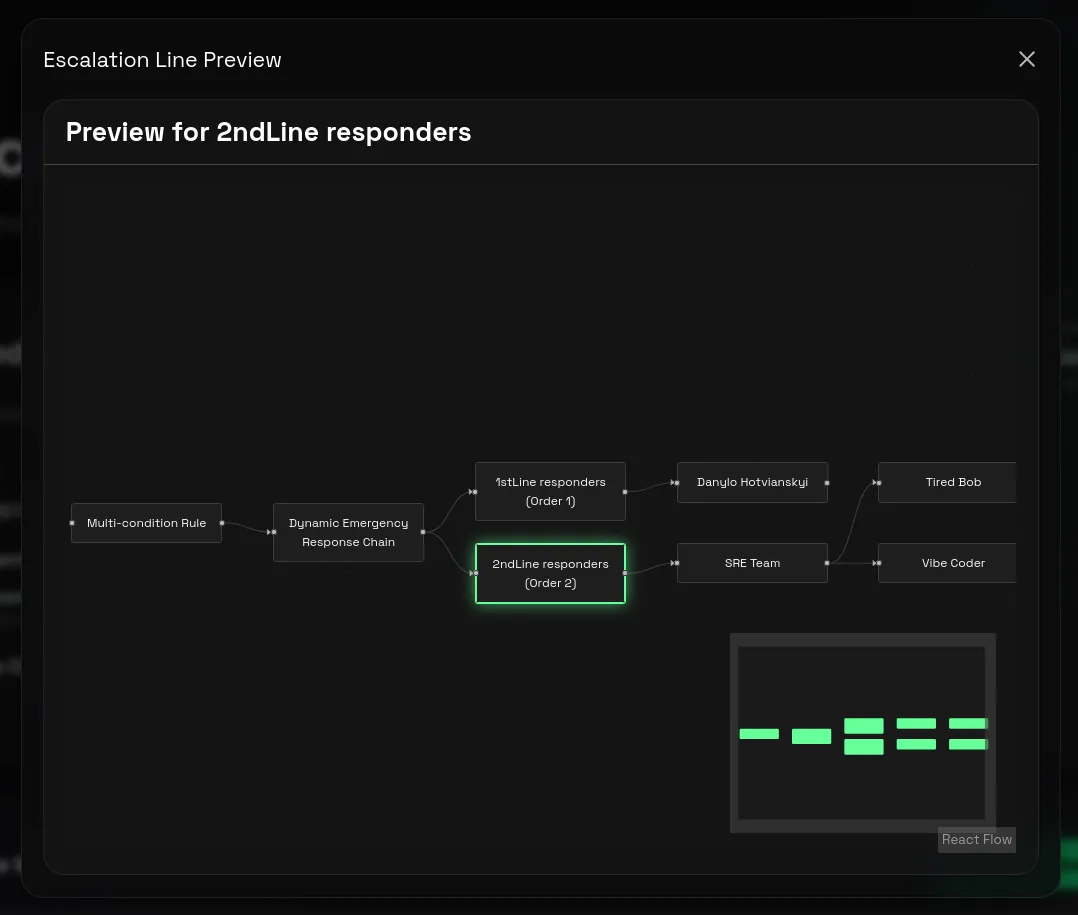
One of the most useful checks in this domain is Preview Escalation.
Use it before live testing whenever you create or change a Chain, Line, or Routing Rule.
Preview Escalation shows the path 1stLine should follow, including:
- the selected Chain
- the connected Lines
- how the path is ordered
- which responder sources are attached through Line Members
- explanation why exactly someone apperead OnCall
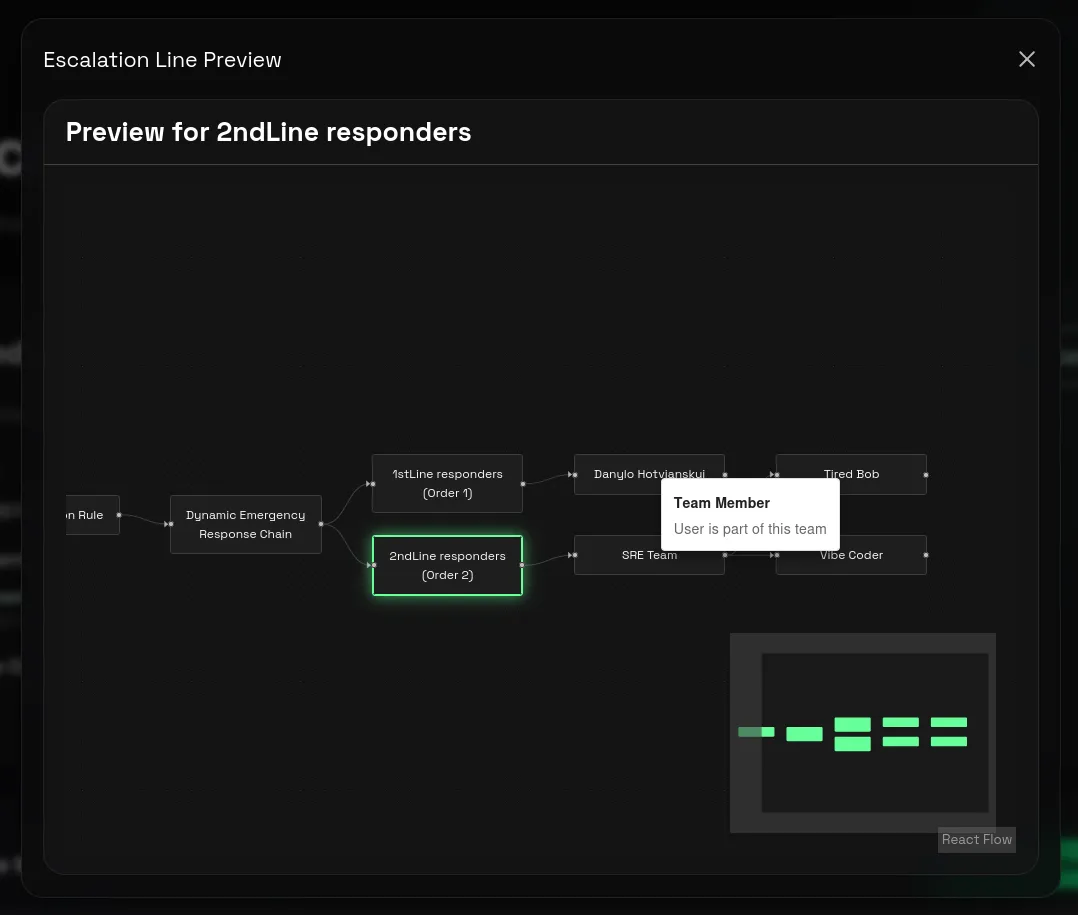
That makes it easier to catch missing Lines, wrong order, or the wrong Chain selection before a real alert reaches responders.
Treat this as a normal setup checkpoint, not as something to use only when a path is already broken.
Escalate to AI
Escalate to AI is an assisted escalation option for diagnostics. It sends an Alert Instance to your AI Escalation Controller with matched rule context, enrichments, and the alert details the assistant needs to investigate.
AI Escalation does not replace responder escalation. The assistant cannot acknowledge, resolve, start or join an Incident, escalate further, or escalate to a specific person by itself.
Instead, the assistant returns an AI Response and optional Suggested Actions. A responder reviews those suggestions in 1stLine and decides whether to run an action.
Use AI Escalation when you want extra investigation context before a human takes action. Use Chains, Lines, Line Members, and Schedules when 1stLine needs to contact or assign real responders.
Additionally, AI escalation rules can be scoped to a specific Escalation Chain to allow enrich the context for a particular responder group or service.
See Escalate to AI for setup and assignment review.
Where to start
If you are setting up escalation for the first time, read in this order:
- Chains
- Lines and Line Members
- Schedules if the responder changes by time
- Routing Rules
- Guide: 24/7 Escalation Coverage with Backups
Use Preview Escalation after each meaningful change while you are setting the path up.